I've been running a home server for a while now, and it's been one of those things that started small and quietly took over a corner of my room. The original motivation was simple — I wanted to stop paying for cloud storage and have full control over my own data. It snowballed from there. Now it handles file sync, serves a handful of personal services, and runs 24/7 without complaint (well, mostly without complaint).
This page documents the hardware I'm running and how I set everything up. Hopefully it saves someone else the hour I spent debugging a misconfigured config file at midnight.
Hardware
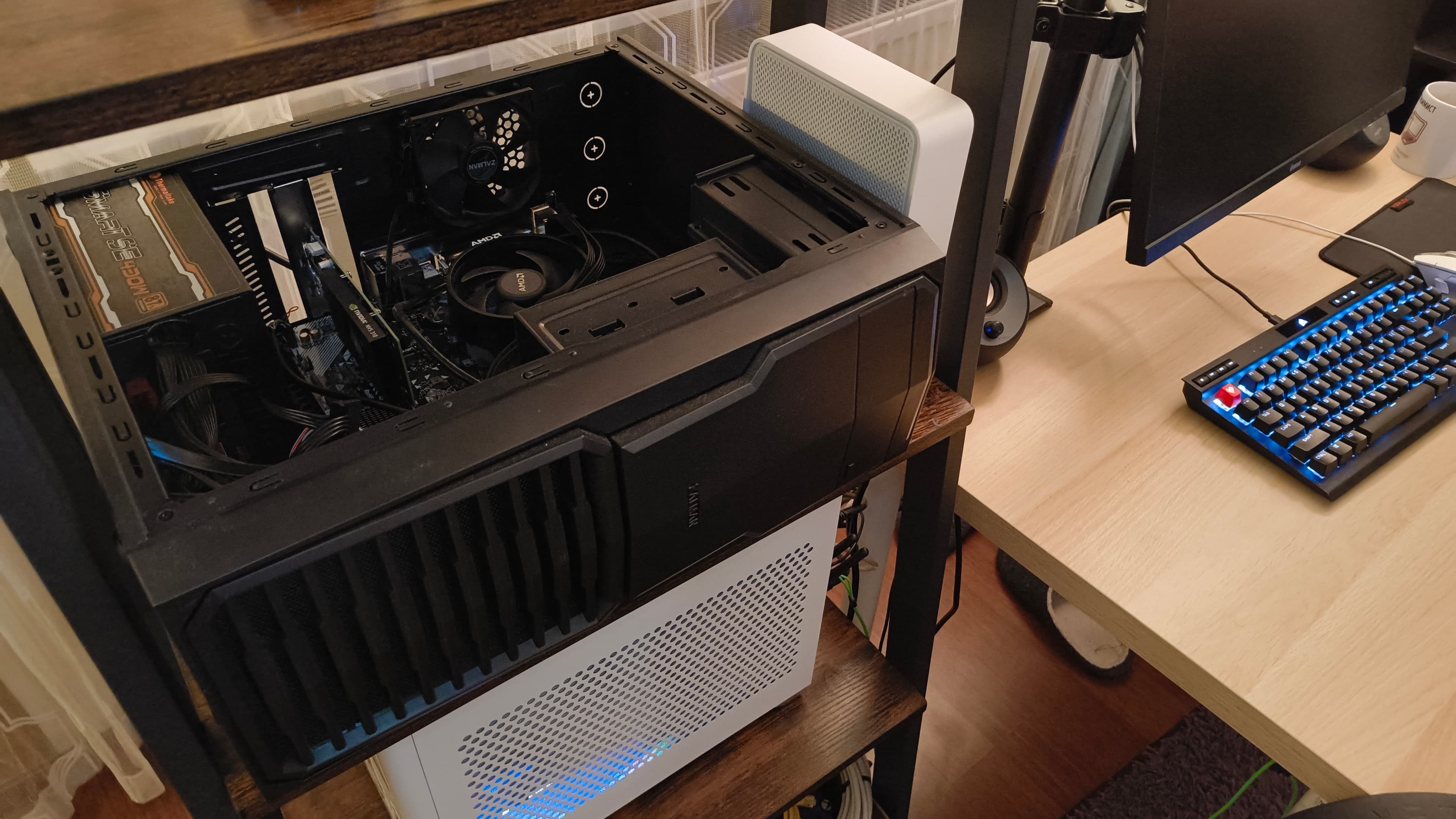
I built this box entirely from used parts sourced on OLX. The goal was "low power, always on, handles whatever I throw at it" — not a performance machine, and definitely not a new machine.
| Component | Part |
|---|---|
| CPU | AMD Ryzen 5 2600 (6c/12t) |
| CPU Cooling | Stock |
| Motherboard | ASRock B450M-HDV R4.0 |
| RAM | 16 GB DDR4 3000 MHz |
| PSU | Thermaltake Smart SE 430W (87+) |
| Case | Zalman T4 mATX |
| Storage | 256 GB Samsung SATA SSD |
| GPU | NVIDIA Quadro NVS 310 |
The Quadro NVS 310 is a relic — a low-profile, passively-cooled workstation card that draws almost no power. It's not there for compute; it's just there so the system posts without a dummy plug and gives me a display output when I need it.
OS & Boot Configuration
Running Ubuntu Server. A couple of hardware-specific quirks worth noting upfront.
nomodeset
The NVS 310 doesn't play nicely with the default kernel mode setting under pure UEFI boot. Without intervention, the display either goes blank after GRUB or the system hangs early in boot. The fix is adding nomodeset to the kernel parameters in GRUB:
# /etc/default/grub
GRUB_CMDLINE_LINUX_DEFAULT="quiet nomodeset"
Then rebuild:
sudo update-grub
This forces the kernel to leave graphics mode switching to userspace (or just skip it), which is fine for a headless server.
r8168 instead of r8169
The onboard NIC uses a Realtek chip that the in-tree r8169 driver technically supports — but in practice you'll see random disconnects and degraded throughput. The out-of-tree r8168 DKMS module is a straightforward fix:
sudo apt install r8168-dkms
After a reboot, the NIC binds to r8168 instead and the network becomes stable.
Services
All services below are exposed externally through a Cloudflared tunnel (more on that at the end). This means no open inbound ports on my router — Cloudflare acts as the reverse proxy and handles TLS. Locally, each service just listens on its own port.
UFW
UFW is the first thing I configure. The rules I needed for the setup below:
# SSH
sudo ufw allow 22/tcp

# Syncthing
sudo ufw allow 22000/tcp
sudo ufw allow 22000/udp
sudo ufw allow 21027/udp
sudo ufw allow 8384/tcp

sudo ufw enable
Syncthing
Syncthing handles file sync across devices and is the main reason this server exists. Installation is via the official apt repo:
# Add the Syncthing apt repository
sudo curl -o /usr/share/keyrings/syncthing-archive-keyring.gpg https://syncthing.net/release-key.gpg
echo "deb [signed-by=/usr/share/keyrings/syncthing-archive-keyring.gpg] https://apt.syncthing.net/ syncthing stable" | sudo tee /etc/apt/sources.list.d/syncthing.list
sudo apt update && sudo apt install syncthing
On Ubuntu Server, Syncthing runs in --user mode by default. That means systemctl commands need the --user flag:
systemctl --user enable syncthing
systemctl --user start syncthing
systemctl --user status syncthing
Permission issues & empty config
On a fresh install I ran into two problems: a permission error at ~/.config/syncthing and an empty config file. The fix was generating the config manually before starting the service:
syncthing generate --home="$HOME/.config/syncthing"
Also worth checking — if you're missing ca-certificates, Syncthing may fail to connect to discovery servers. Install it explicitly:
sudo apt install ca-certificates
By default, Syncthing's web UI only binds to 127.0.0.1:8384. To access it from another machine on the local network during initial setup, change the address in ~/.config/syncthing/config.xml:
<gui enabled="true" tls="false">
  <address>0.0.0.0:8384</address>
  ...
</gui>
Once you've completed setup and paired your devices, you can lock it back down to 127.0.0.1.
Docker
Docker is installed from the official apt repo, not the Ubuntu default packages (which tend to be outdated):
# Add Docker's official GPG key
sudo apt install ca-certificates curl
sudo install -m 0755 -d /etc/apt/keyrings
sudo curl -fsSL https://download.docker.com/linux/ubuntu/gpg -o /etc/apt/keyrings/docker.asc
sudo chmod a+r /etc/apt/keyrings/docker.asc

# Add the repository
echo \
  "deb [arch=$(dpkg --print-architecture) signed-by=/etc/apt/keyrings/docker.asc] https://download.docker.com/linux/ubuntu \
  $(. /etc/os-release && echo "$VERSION_CODENAME") stable" | \
  sudo tee /etc/apt/sources.list.d/docker.list > /dev/null

sudo apt update && sudo apt install docker-ce docker-ce-cli containerd.io docker-buildx-plugin docker-compose-plugin
Permission denied on Docker socket
After install, running any docker command as a non-root user gives:
permission denied while trying to connect to the Docker daemon socket at unix:///var/run/docker.sock
Add your user to the docker group and refresh the session:
sudo usermod -aG docker $USER
newgrp docker
Or log out and back in — newgrp just avoids the logout.
Cloudflared
Cloudflare Tunnel (cloudflared) is what connects all local services to the outside world without opening any ports on my router. The tunnel daemon runs on the server, maintains an outbound connection to Cloudflare's edge, and Cloudflare routes inbound traffic from my domain back through it. From the outside, everything looks like a normal HTTPS endpoint. From the inside, there are no exposed ports.
Install from the Cloudflare apt repo:
# Add Cloudflare's apt repository
curl -fsSL https://pkg.cloudflare.com/cloudflare-main.gpg | sudo tee /usr/share/keyrings/cloudflare-main.gpg > /dev/null
echo "deb [signed-by=/usr/share/keyrings/cloudflare-main.gpg] https://pkg.cloudflare.com/cloudflared $(lsb_release -cs) main" | sudo tee /etc/apt/sources.list.d/cloudflared.list
sudo apt update && sudo apt install cloudflared
Authenticate and create your tunnel via the Cloudflare dashboard or cloudflared tunnel login, then write your config.yml. Once that's ready, install it as a system service:
sudo cloudflared --config /home/username/.cloudflared/config.yml service install
Cannot determine default configuration path
Running cloudflared service install without --config gives:
Cannot determine default configuration path. No file [config.yml config.yaml].
Always pass the explicit path as shown above. The default lookup only works if the config is in the standard locations, which it often isn't when you've set things up under a specific user home.
With the service installed, cloudflared starts on boot and keeps the tunnel alive automatically. Every service I run — Syncthing UI, whatever else I add later — gets a subdomain, no port forwarding required.